
Veriport
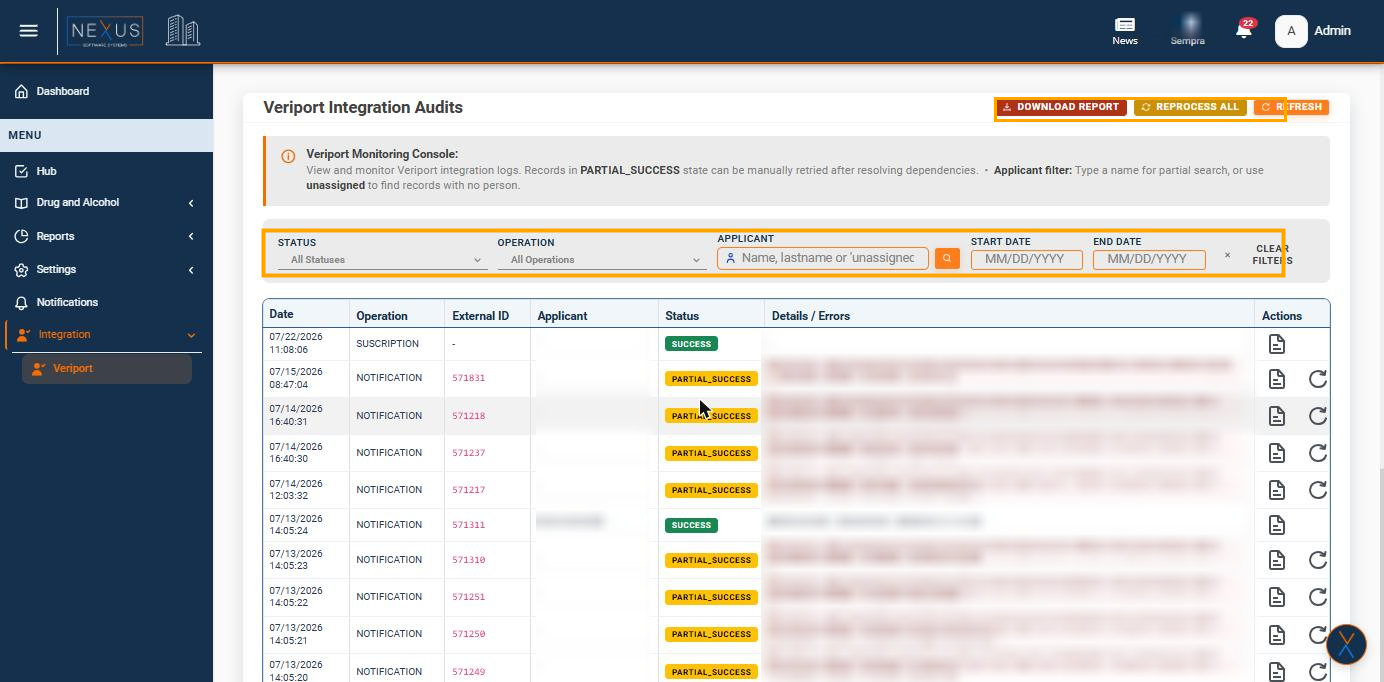
Veriport is the external system Nexus33 exchanges drug and alcohol test results with. This page lets you see every message exchanged with Veriport, spot the ones that need attention, and retry them without waiting for support.
Accessing the Audits Page
From the left-hand menu, open Integration and select Veriport. The page always shows the records for the organization you currently have selected at the top of the screen.
Understanding the Audit List
Each row is one message exchanged with Veriport. Date and time is when it happened; Operation tells you whether it was a subscription (registering an employee) or a notification (a test result); External ID is Veriport's own reference number; Applicant is the employee involved, when known; Status shows whether it went through cleanly; and Details / Errors explains what happened, including the employee's name and organization when the record could not be matched automatically.
Where Veriport Data Appears on an Employee
Once a notification from Veriport is processed successfully, its result is attached directly to the employee's own record, not just to this audit list. On the employee's Drug & Alcohol tab, the matching Check-in Documentation shows a VERIPORT tag next to it and next to the Random Name, the Date Result Received is filled in automatically, and the supporting files Veriport sent (for example the chain-of-custody form and the lab report) appear as attachments you can download:
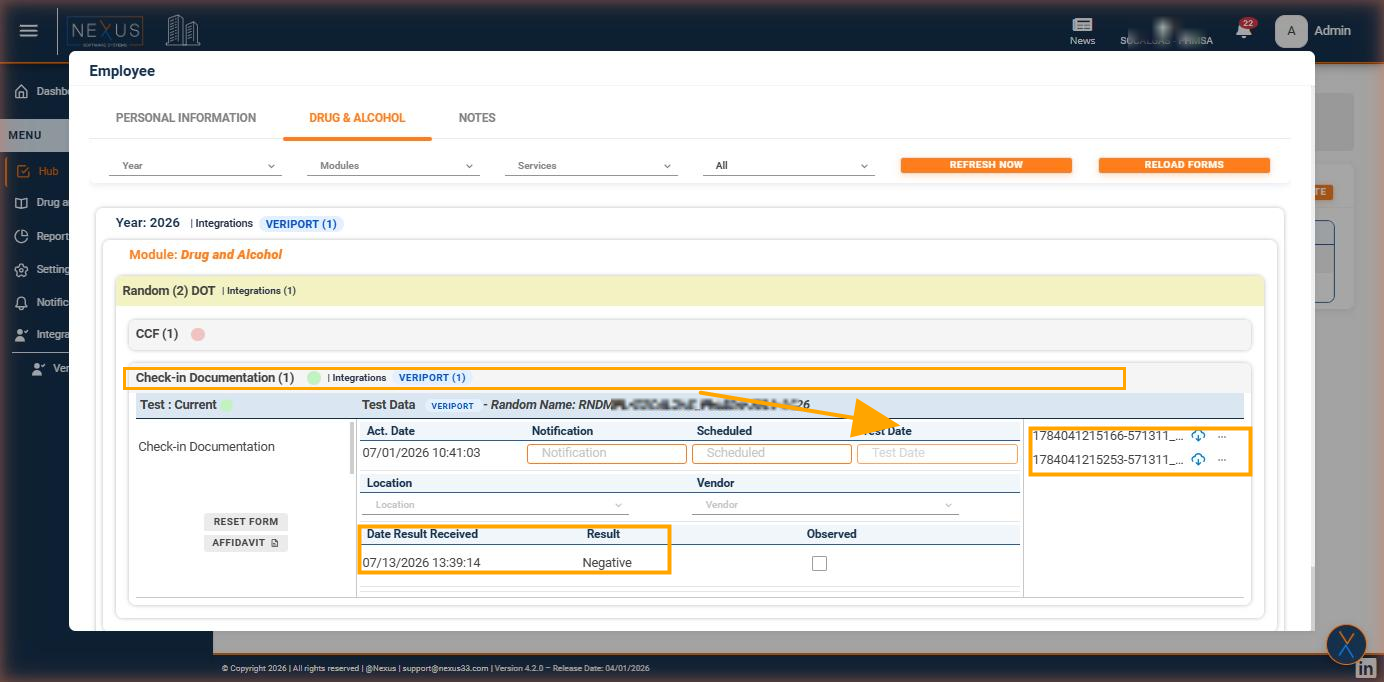
This is the easiest way to confirm that a specific employee's result actually came from Veriport rather than being entered manually.
Filtering the List
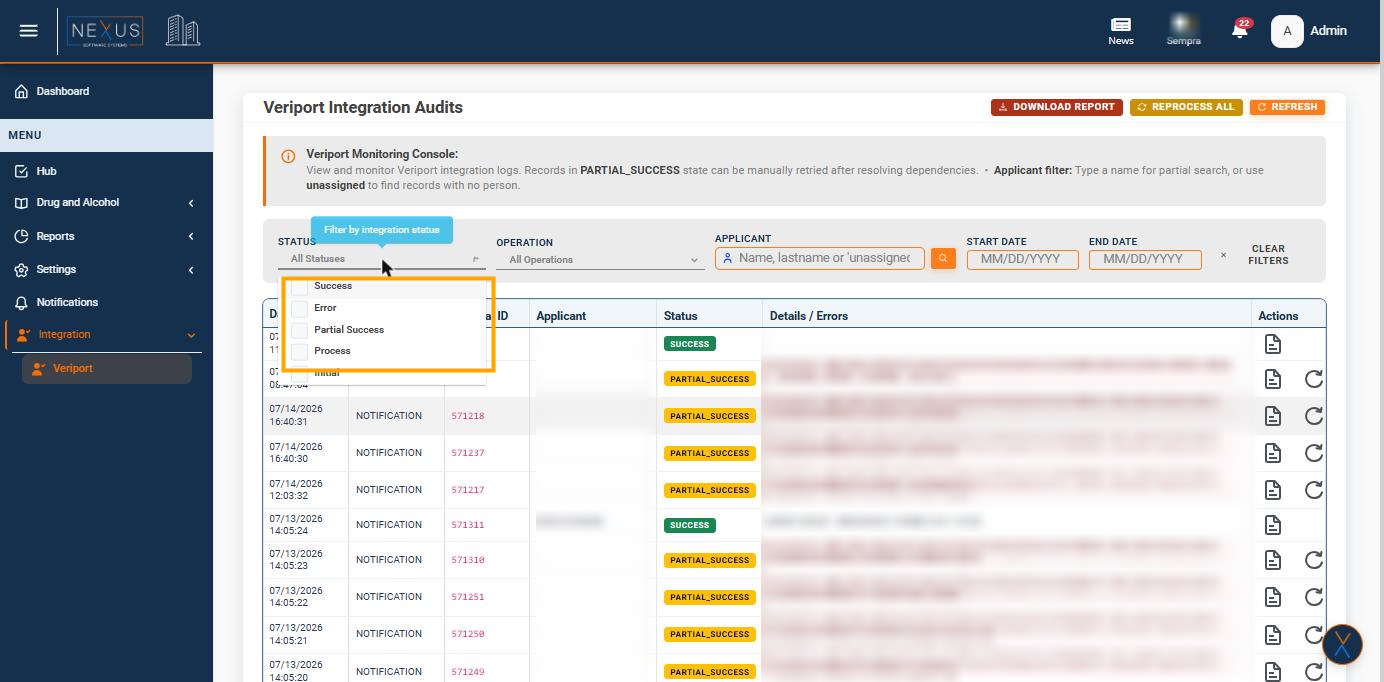
Use Status to show only the records in a particular state - for example, only Partial Success records that still need attention:
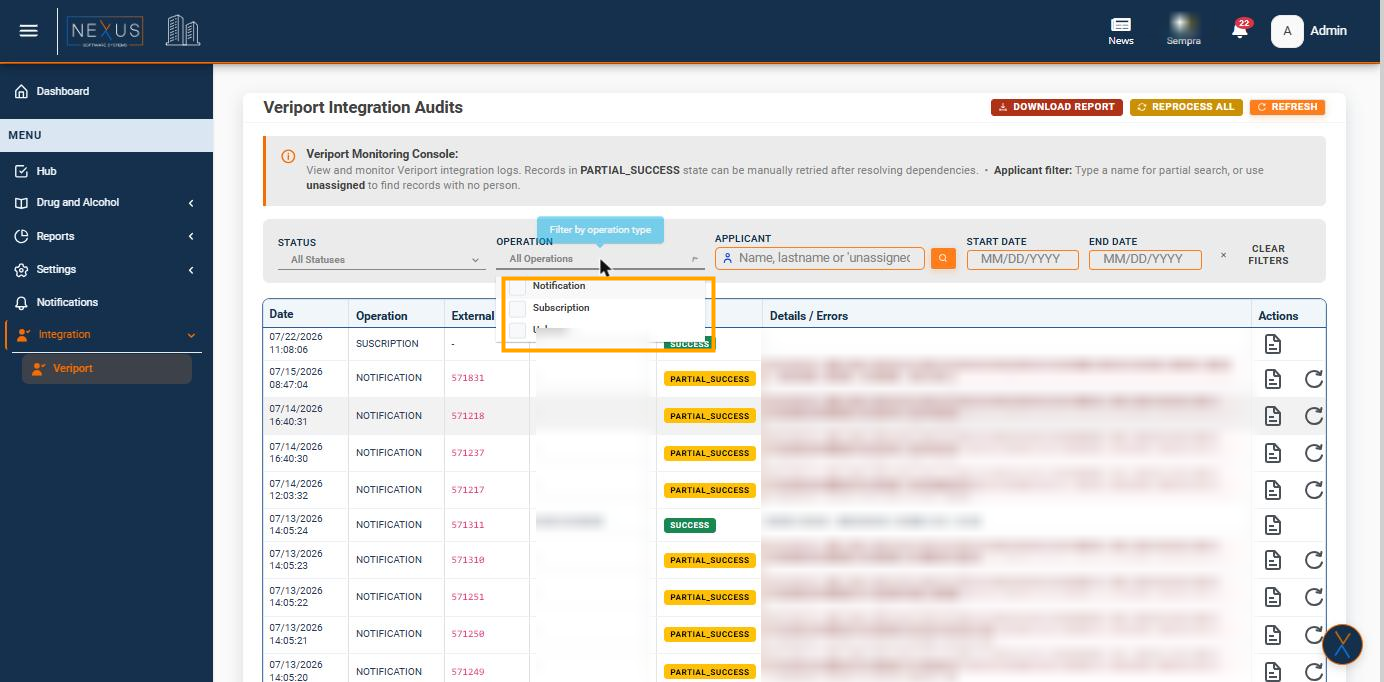
Use Operation to show only subscriptions or only notifications:
Use Applicant to search by name or last name - it also accepts unassigned, which finds records that could not be linked to any employee. Start Date and End Date narrow the list to a date range, and Clear Filters resets every filter back to the full list.
Understanding the Status Values
- Success - the message was processed and matched correctly.
- Partial Success - the message was received but a related record (for example, the test result) could not be matched automatically; it can be retried once the missing information is fixed.
- Error - the message could not be processed at all.
- Process - the message is still being worked on.
- Initial - the message has just arrived and has not been processed yet.
Viewing the Raw Record (View XML)
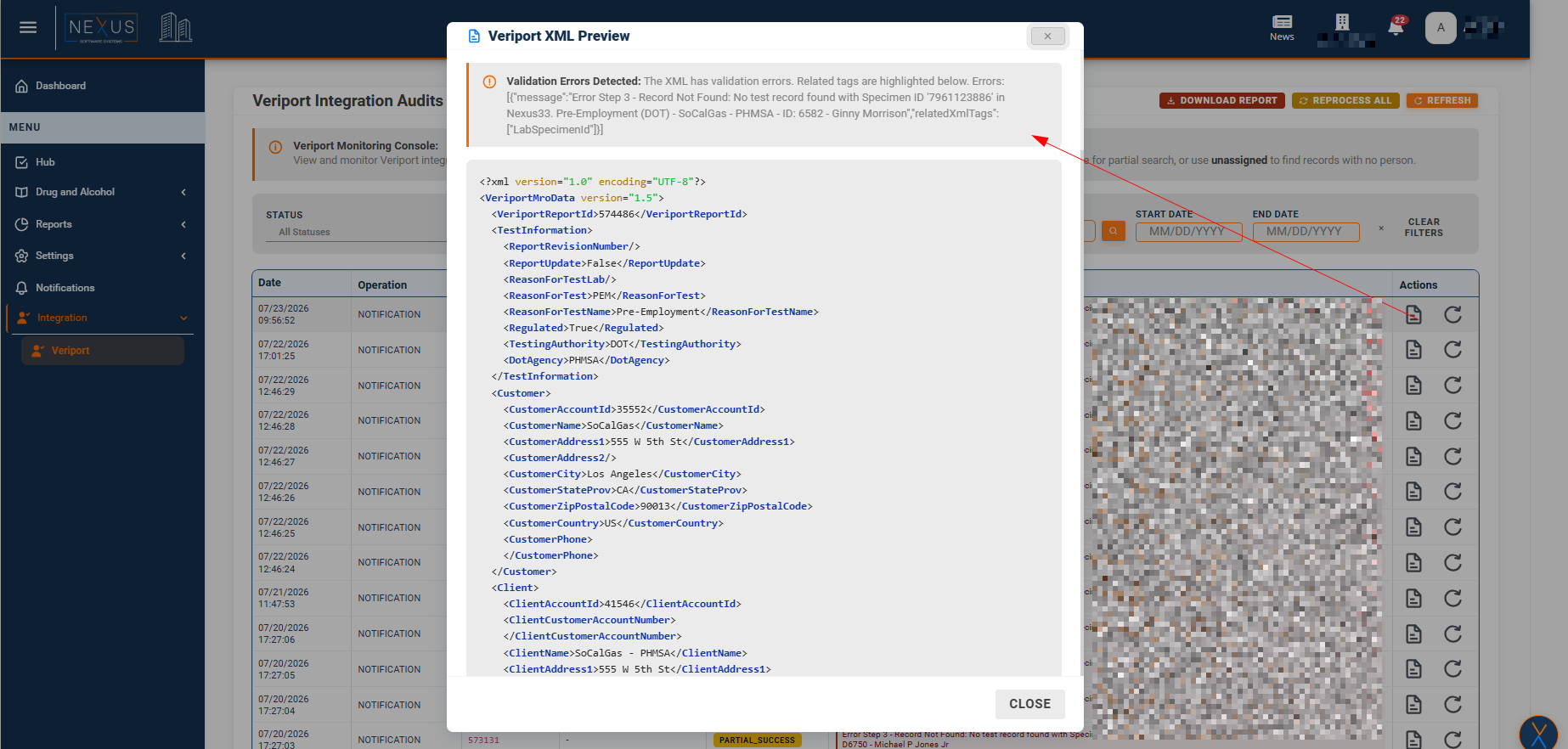
The document icon in the Actions column opens the exact message Veriport sent for that record, with any parts that caused a validation error highlighted. This is mostly useful when working with support to understand why a record did not match.
Retrying a Single Record
For a Partial Success or Error record, a retry icon appears next to the document icon. Once the missing dependency has been resolved (for example, the test result now exists in Nexus33), click it to reprocess just that record. You will be asked to confirm before anything happens:
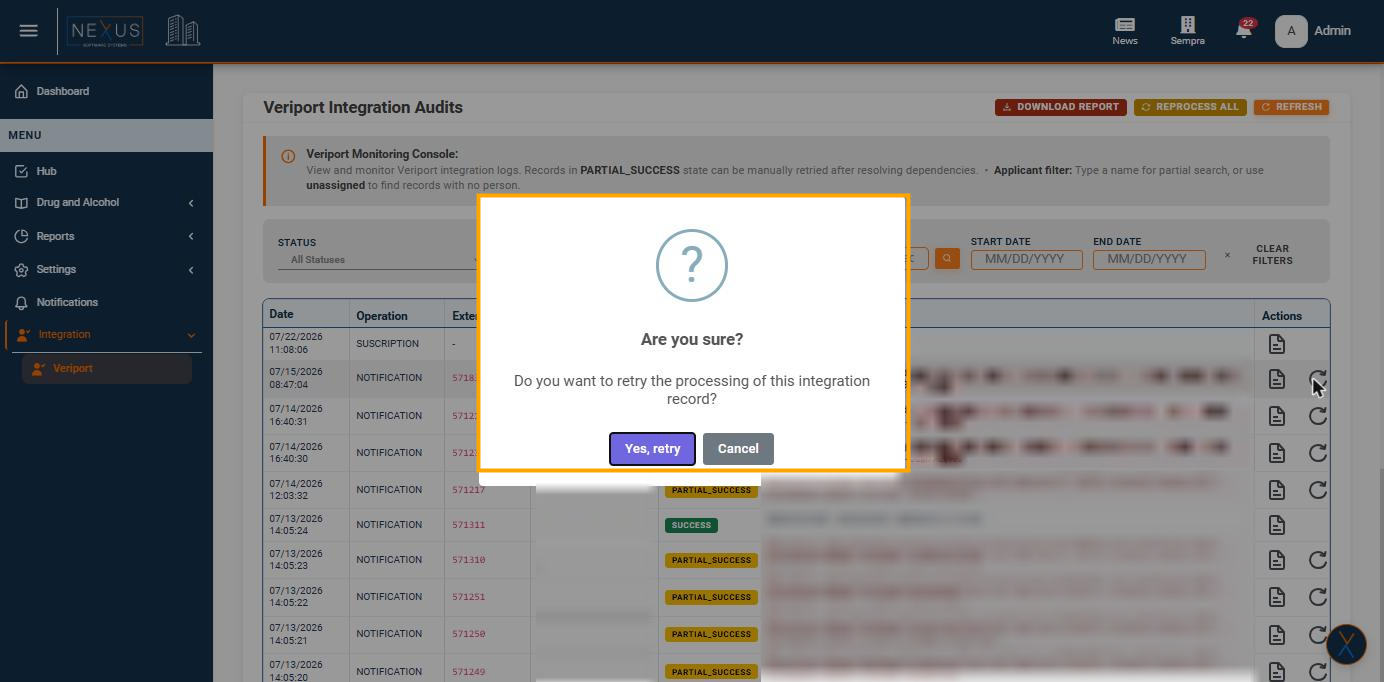
After confirming, Nexus33 processes the record again and shows whether it succeeded.
Reprocessing All Failed Records
Instead of retrying records one by one, Reprocess All (top right) runs every pending Partial Success and Error record in one go. It shows a running total of how many were processed, how many succeeded, and how many failed, together with a line-by-line result for each one. Use this after a batch of missing test results has been loaded into Nexus33, to clear the backlog at once.
Downloading a Report
Download Report (top right) downloads a spreadsheet listing every pending or failed audit currently on the list, so you can share it or review it outside Nexus33. If there is nothing pending, you will be told there is no data to download.
Automatic Processing (Scheduled Job)
Veriport sends results to Nexus33 as soon as they are available - you do not need to request them. Every night, Nexus33 also runs an automatic job that behaves like clicking Reprocess All by itself: it retries every Partial Success and Error record once, then e-mails a report of whatever is still unresolved after that retry to the people configured to receive it. This means most Partial Success records that were only waiting on a missing test result tend to clear up on their own overnight; only the ones still failing after that automatic retry need your attention.
The schedule and recipients for that nightly report are configured the same way as any other Nexus33 notification, under Notifications.
Workflow Scenarios
A single record is stuck: Search for the employee under Applicant, confirm the record is in Partial Success or Error, fix whatever is missing in Nexus33, then use the retry icon on that row.
Many records are stuck after a data load: Filter by Status = Partial Success to see the full scope, resolve the missing dependencies in bulk, then use Reprocess All to clear them in one action.
You need to report on pending issues: Use Download Report to get a spreadsheet of everything still pending or failed.
Validations and Notes
- The retry icon is only shown for records in Partial Success or Error - Success records never need one.
- Retrying a record before its missing dependency is resolved will simply return it to the same state - there is no risk in trying, but it will not succeed until the underlying data exists.
- The applicant name shown here always comes from Nexus33's own records, not directly from Veriport.