Users
In the users section, you can create, edit, and list system users.
Creating users
There are two ways to create users in the system:
- Assign permissions to an existing employee:
- Select the “+” icon next to the employee.

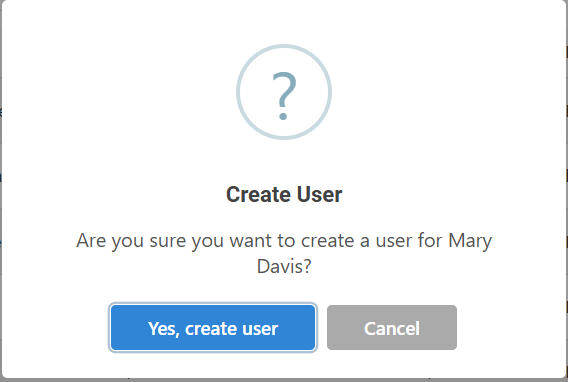
- A confirmation window will appear to validate whether you want to convert that employee into a portal user.
- Once the credentials have been successfully created, a temporary password will be generated and sent to the user's registered email address.

- Select the “+” icon next to the employee.


Creating multiple users
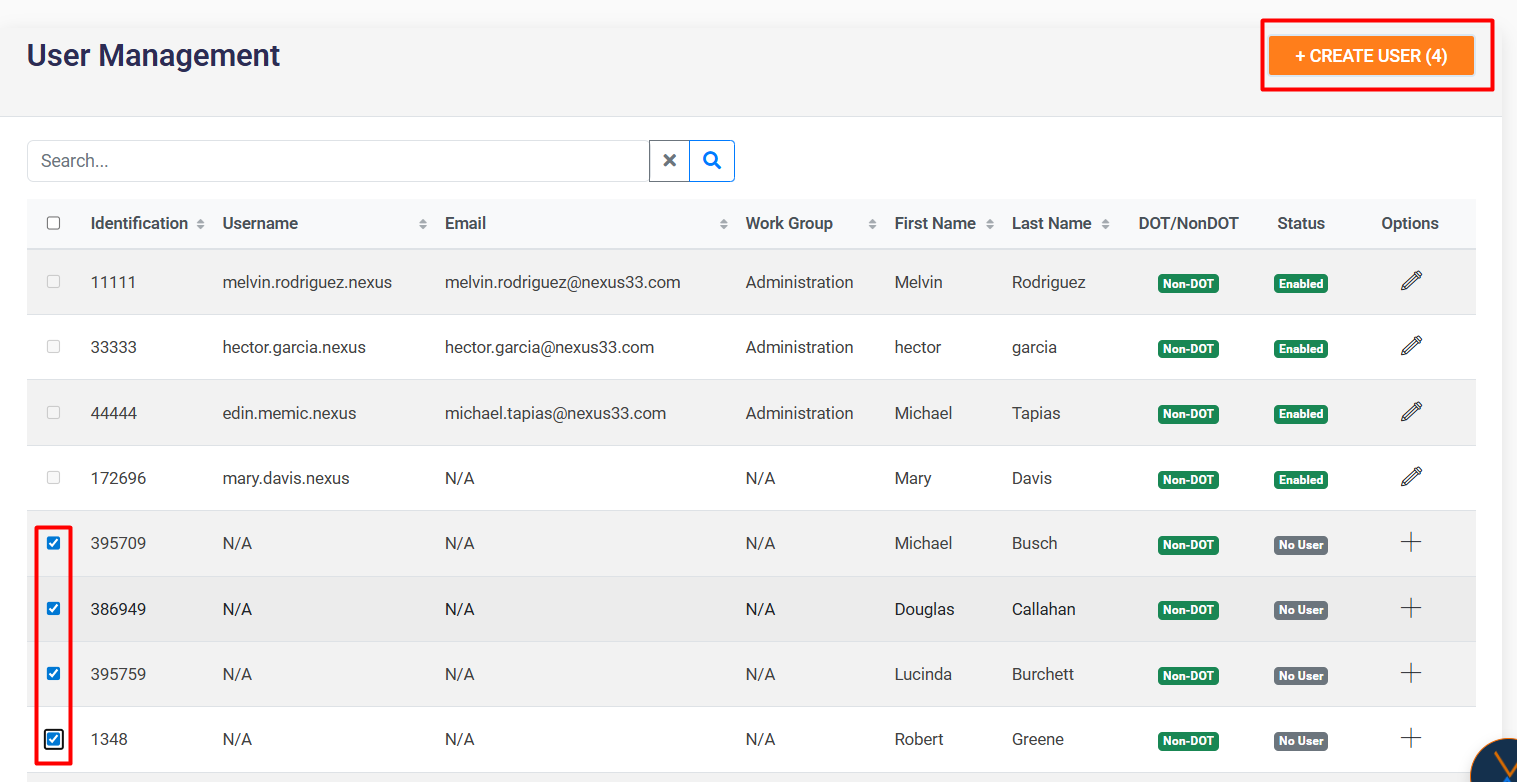
Select several employees using the checkboxes and click on the “Create User” button to generate multiple users simultaneously.
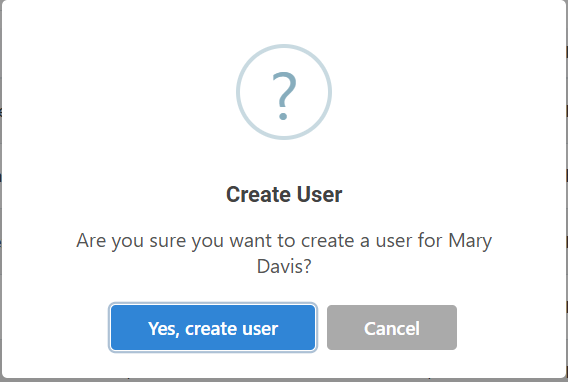
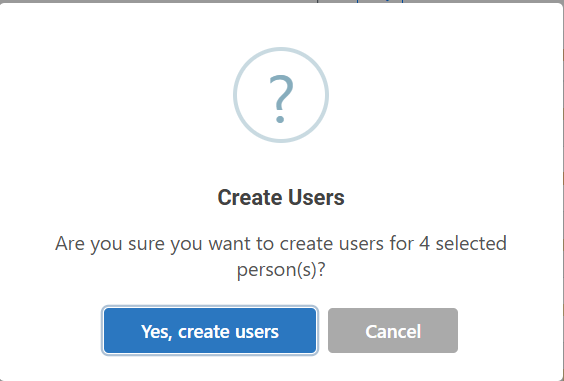
A confirmation window will appear to validate whether you want to convert the selected employees into users.

Editing users
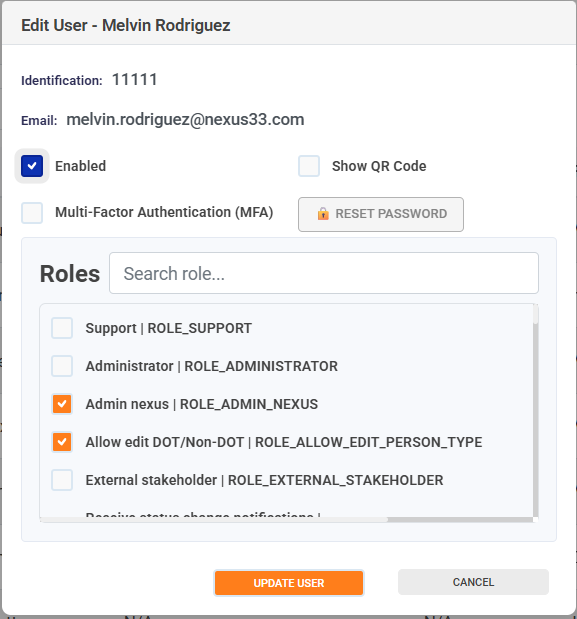
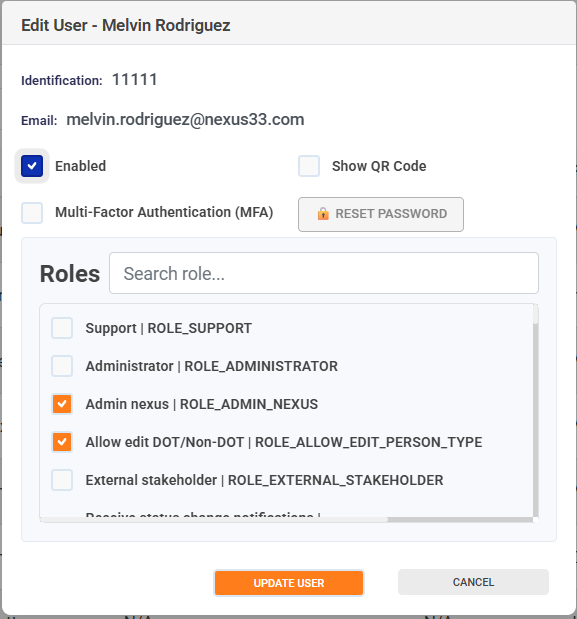
From the Edit option, you can:
-
Enable or disable a user's access to the portal.
-
Enable or disable multi-factor authentication (MFA).
-
Enable or disable Show QR to embed the two-factor authentication app.
-
Configure the roles associated with each user.
-
Allows you to reset the password for portal users in case of forgotten or lost access.