
Import Employee Configuration
Overview
The Import Employee Configuration feature allows administrators to configure how employee data is mapped and imported from Excel files. This configuration defines which columns in your Excel file correspond to which employee attributes in the system, ensuring accurate data import.
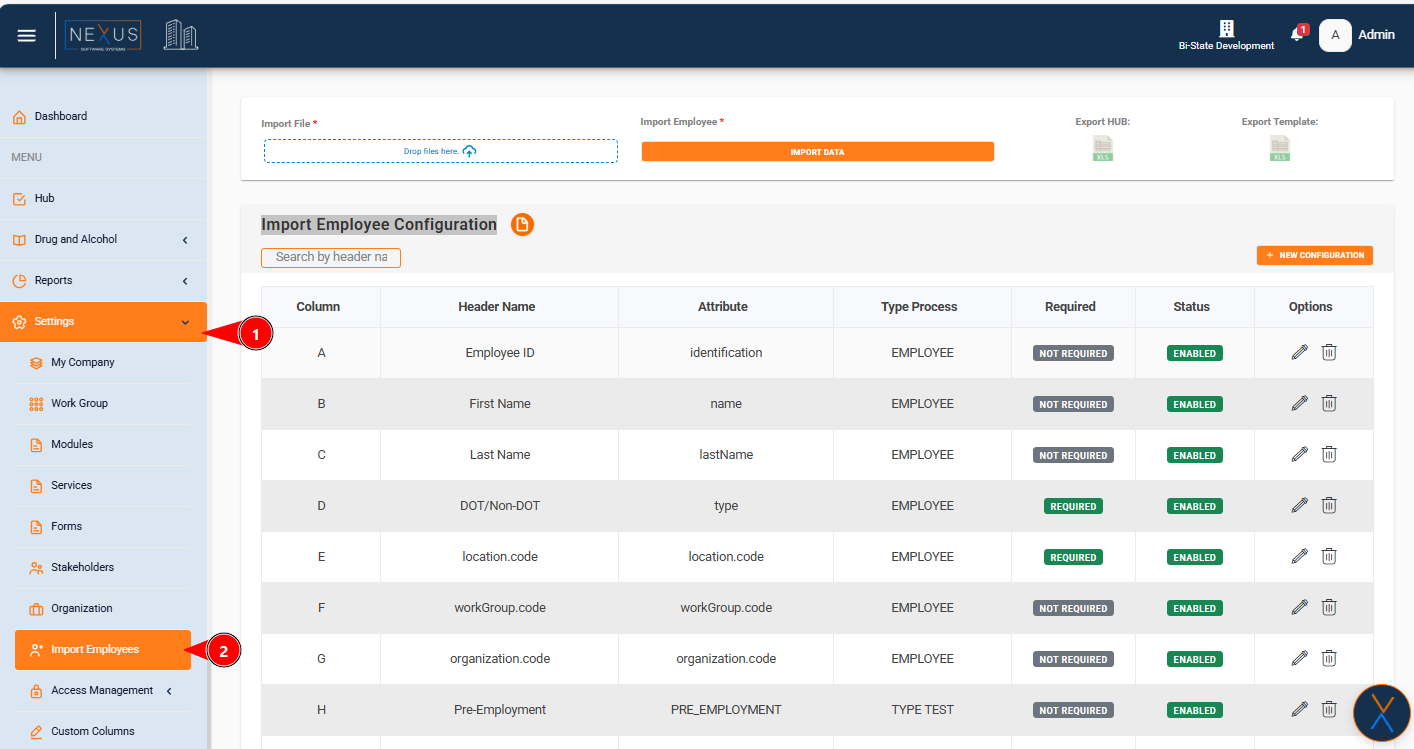
Accessing the Feature
Configuration List Overview
The configuration list displays all existing import configurations in a table format. Each row represents one configuration that maps an Excel column to an employee attribute.
Table Columns

Column
- Description: The Excel column letter (A, B, C, etc.) or "N_A" if not applicable
- Display: Shows the letter identifier that corresponds to the Excel file column
- Example: "A", "B", "C", "N_A"
Header Name
- Description: The user-friendly name that appears as the column header in the Excel file
- Display: The text label that identifies what data this column contains
- Example: "Employee ID", "First Name", "Last Name", "Pre-Employment"
Attribute
- Description: The system attribute name that the Excel column maps to
- Display:
- For EMPLOYEE type: Shows the attribute name (e.g., "identification", "name", "location.code")
- For TYPE_TEST or CUSTOM_COLUMN: Shows the type test value or custom column code
- Example: "identification", "name", "PRE_EMPLOYMENT", "CUSTOM_COLUMN_CODE"
Type Process
- Description: The type of data processing for this configuration
- Display:
- "EMPLOYEE" - Standard employee data fields
- "TYPE TEST" - Drug and alcohol test types
- "CUSTOM COLUMN" - Custom column data
- Note: If the value is null in the system, it displays as "EMPLOYEE"