
How it works.
This feature ensures that:
- The form can be corrected when it has been filled out incorrectly.
- The process can be repeated without generating inconsistencies.
- All fields, such as files, notes, and values that have been added in full, are cleared.
- Internal traceability of the change is maintained, ensuring control and monitoring of the form's history.
In summary, Reset Form offers a secure and controlled way to reset a form so that it can be managed again as if it were the first time.
Steps for use.
Step 1: Locate the “Reset form” button. Within the form, the user will find the “Reset form” button, available regardless of the current status of the record (Completed, Partial, etc.).
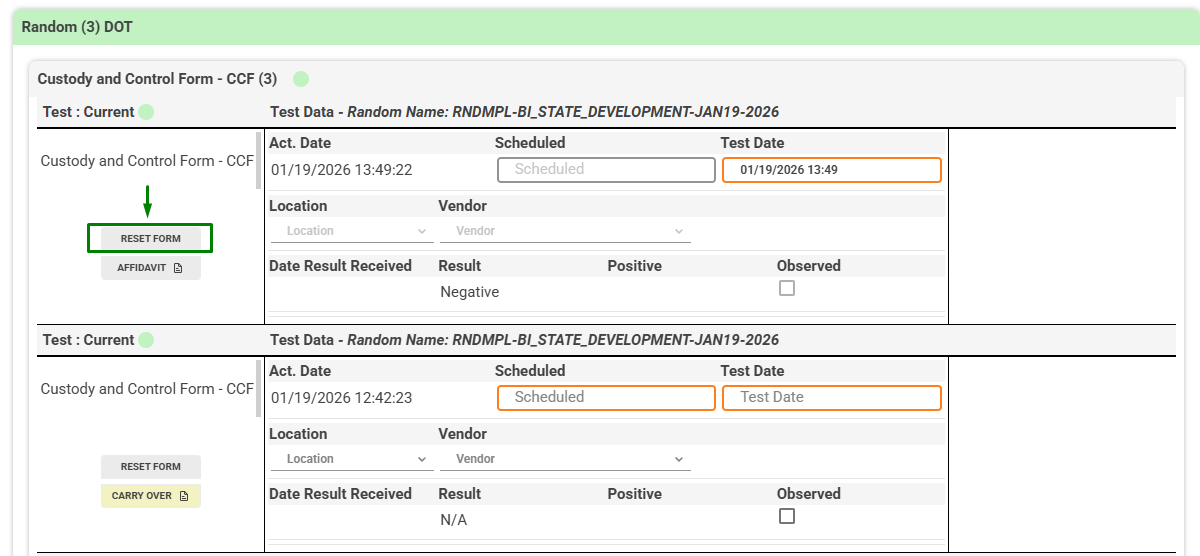
Step 2: Confirmation message
When you click Reset Form, the system displays a confirmation window to prevent accidental resets. The user must confirm the action by selecting “Accept.” If you select “Cancel,” no changes will be made.

Step 3: Form reset execution
Once the action is confirmed:
- All fields in the form are cleared.
- The form status returns to Incomplete.
- Previously entered results are deleted.
- The system leaves the form ready to be filled out again.
- The form history keeps a record of the change for traceability.
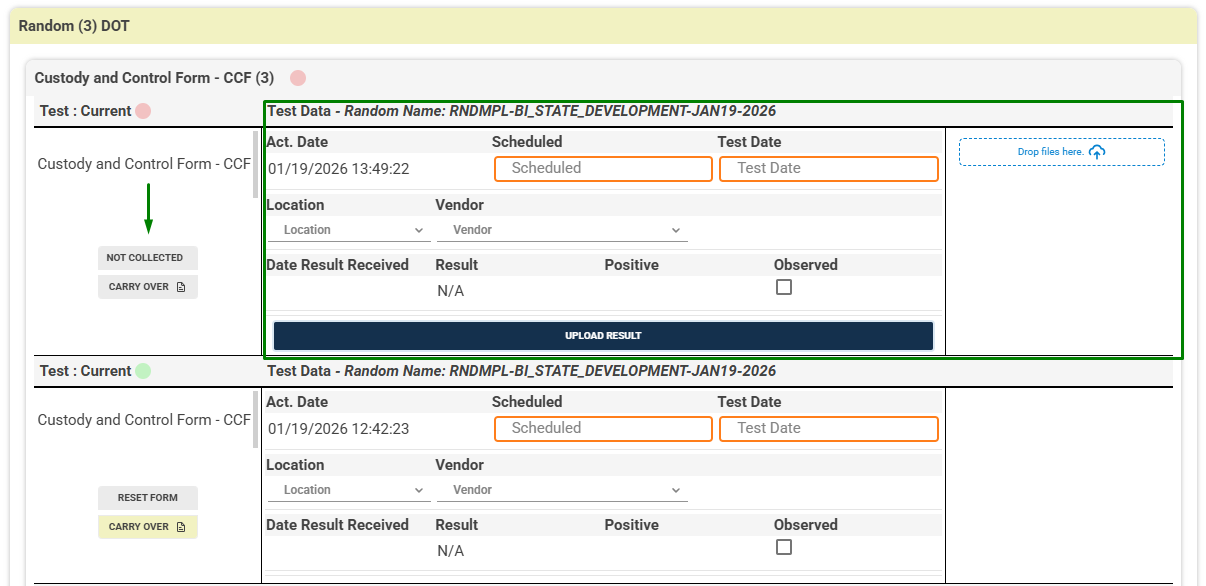
Note: This action cannot be undone. Once the form is reset, previously entered information will need to be completed again.