Import Employee Configuration
Overview
The Import Employee Configuration feature allows administrators to configure how employee data is mapped and imported from Excel files. This configuration defines which columns in your Excel file correspond to which employee attributes in the system, ensuring accurate data import.
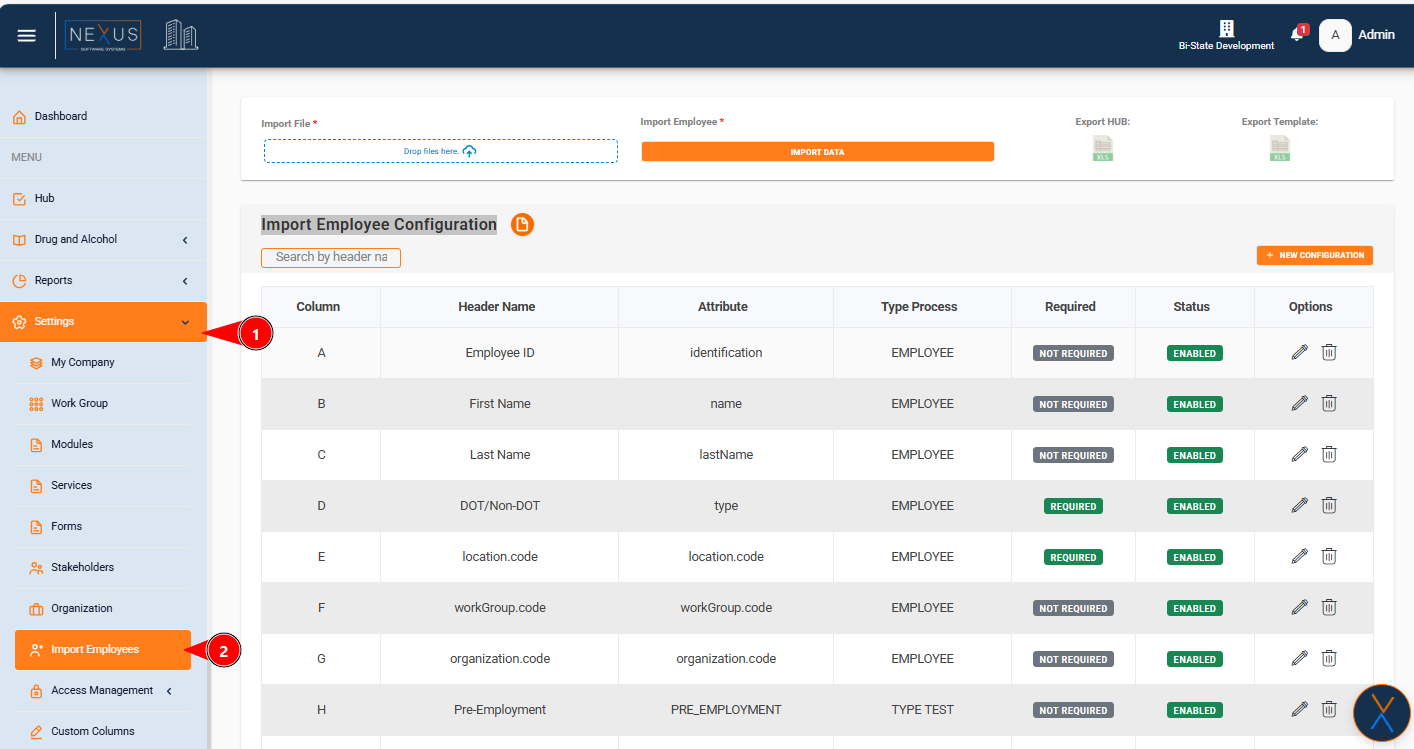
Accessing the Feature
Configuration List Overview
The configuration list displays all existing import configurations in a table format. Each row represents one configuration that maps an Excel column to an employee attribute.
Table Columns

Column
- Description: The Excel column letter (A, B, C, etc.) or "N_A" if not applicable
- Display: Shows the letter identifier that corresponds to the Excel file column
- Example: "A", "B", "C", "N_A"
Header Name
- Description: The user-friendly name that appears as the column header in the Excel file
- Display: The text label that identifies what data this column contains
- Example: "Employee ID", "First Name", "Last Name", "Pre-Employment"
Attribute
- Description: The system attribute name that the Excel column maps to
- Display:
- For EMPLOYEE type: Shows the attribute name (e.g., "identification", "name", "location.code")
- For TYPE_TEST or CUSTOM_COLUMN: Shows the type test value or custom column code
- Example: "identification", "name", "PRE_EMPLOYMENT", "CUSTOM_COLUMN_CODE"
Type Process
- Description: The type of data processing for this configuration
- Display:
- "EMPLOYEE" - Standard employee data fields
- "TYPE TEST" - Drug and alcohol test types
- "CUSTOM COLUMN" - Custom column data
- Note: If the value is null in the system, it displays as "EMPLOYEE"
Required
- Description: Indicates whether this field is mandatory during import
- Display:
- Green badge "REQUIRED" - Field must be filled in the Excel file
- Gray badge "NOT REQUIRED" - Field is optional
- Purpose: Helps identify which columns must have data for successful import
Status
- Description: Whether this configuration is currently active and will be used during import
- Display:
- Green badge "ENABLED" - Configuration is active and will be processed
- Red badge "DISABLED" - Configuration is inactive and will be skipped during import
- Purpose: Allows you to temporarily disable configurations without deleting them
Options
- Description: Actions available for each configuration
- Actions:
- Edit icon (pencil) - Opens the edit form to modify the configuration
- Tooltip: "Edit configuration"
- Delete icon (trash) - Removes the configuration permanently
- Tooltip: "Delete configuration"
- Edit icon (pencil) - Opens the edit form to modify the configuration
- Note: Icons are closely spaced for easy access
Search Functionality
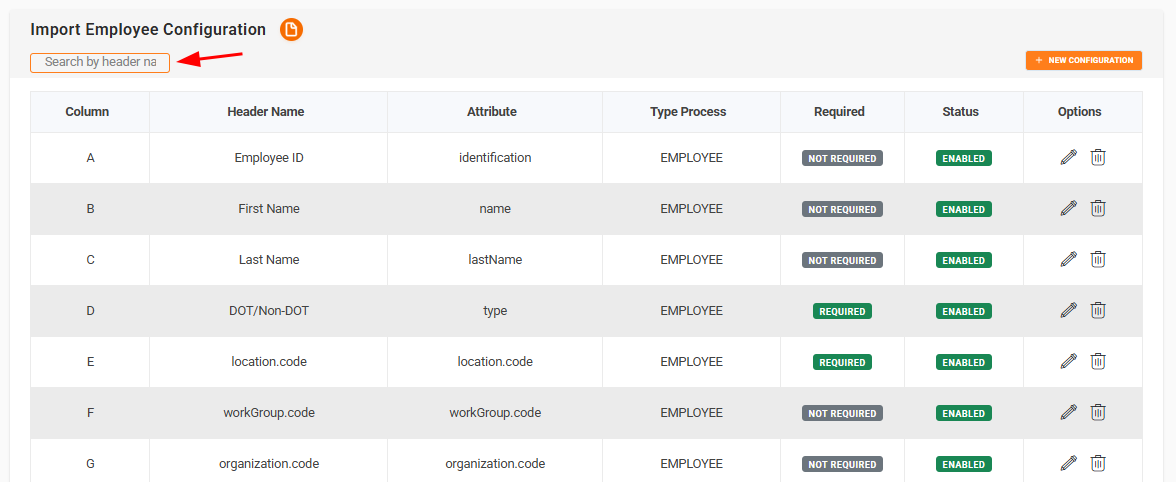
The search bar allows you to quickly find configurations by:
- Header Name
- Column Letter
- Attribute Name
How to Search
- Click in the search input field at the top of the configuration table
- Type your search term (e.g., "Employee ID", "A", "identification")
- Press Enter or wait for automatic filtering
- The table will show only matching configurations
- To clear the search, delete all text from the search field
Tooltip: "Search configurations by header name, column letter, or attribute"
Creating a New Configuration
Step-by-Step Guide

-
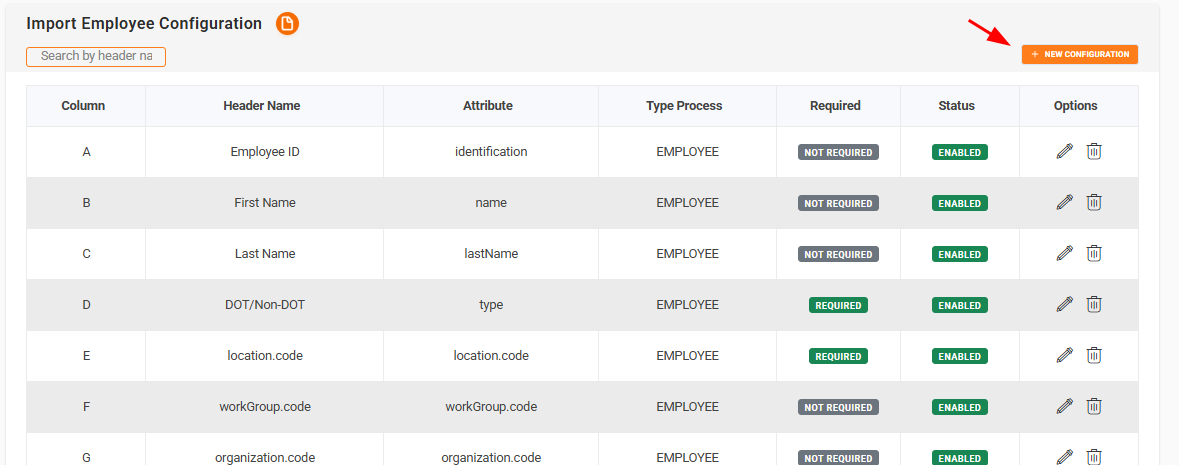
Click the "New Configuration" button
- Located at the top right of the configuration table
- Tooltip: "Create a new import employee configuration"
-
The configuration form modal will open
- Title: "New Import Employee Configuration"
- Title: "New Import Employee Configuration"
-
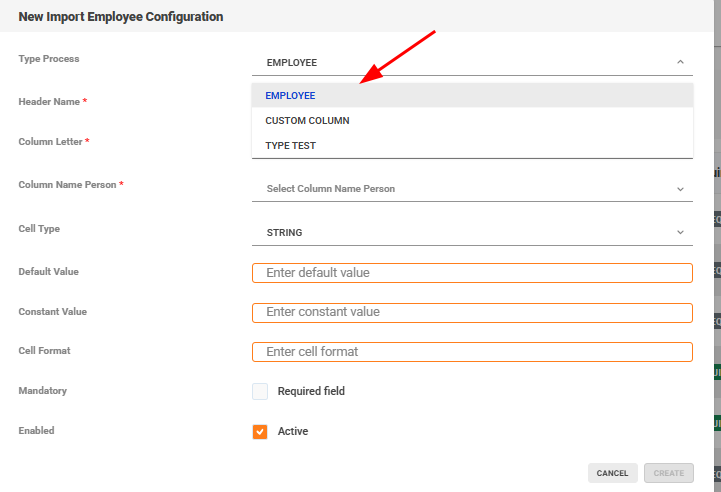
Select Type Process (First field - Required)
- This determines what type of data this configuration handles
- Options:
- EMPLOYEE - Standard employee information (default)
- TYPE TEST - Drug and alcohol test types
- CUSTOM COLUMN - Custom column data
-

-
Based on Type Process selection, additional fields will appear:
If "TYPE TEST" is selected:
- Type Test field appears (Required)
- Select from dropdown:
- Pre Employment
- Post Accident
- Reasonable Susp Cause
- Return To Duty
If "CUSTOM COLUMN" is selected:
- Custom Column field appears (Required)
- Select from dropdown showing available custom column codes
- Only the custom column name is displayed (not the code)
If "EMPLOYEE" is selected (default):
- Column Name Person field appears (Required)
- Select from dropdown showing available person fields
- System fields (id, created_by, etc.) are hidden
- Attribute Name Entity field appears automatically (Read-only)
- This field auto-fills based on your Column Name Person selection
- For foreign keys (ending in _id), it shows the entity.code format
-
Enter Header Name (Required)
- The name that appears as the column header in Excel
- Example: "Employee ID", "First Name", "Location Code"
- This is what users will see in their Excel file
-
Select or Enter Column Letter (Required)
- Option 1: Select from predefined list
- Options include: N_A, A, B, C, D... Z, AA, AB... AI
- Used letters (except N_A) are not available
- N_A is always available
- Option 2: Select "Custom..." to enter a custom letter
- Enter letters only (e.g., "HG", "XY")
- Automatically converts to uppercase
- Numbers and special characters are not allowed
- Click "Cancel" to return to predefined list
- Option 1: Select from predefined list
-
Select Cell Type (Optional, defaults to "STRING")
- Available options:
- Numeric
- String
- Blank
- Local Date
- Enum
- Note: Some technical types are hidden from the list
- Available options:
-
Enter Default Value (Optional)
- A default value to use if the Excel cell is empty
- Text input field
- Example: "N/A", "0", "Default Location"
-
Enter Constant Value (Optional)
- A constant value that will always be used for this column
- Text input field
- Example: "ACTIVE", "USA"
-
Enter Cell Format (Optional)
- Format specification for the cell data
- Text input field
- Example: Date formats, number formats
-
Set Mandatory (Checkbox, defaults to unchecked)
- Check "Required field" if this column must have data in Excel
- Unchecked = Optional field
- Checked = Required field (will show error if empty during import)
-
Set Enabled (Checkbox, defaults to checked)
- Check "Active" to enable this configuration
- Unchecked = Configuration is disabled (skipped during import)
- Checked = Configuration is active (used during import)
-
Click "Create" button
- Button is disabled until all required fields are filled
- Tooltip: "Create a new import employee configuration"
-
Success message appears
- "Configuration was added successfully"
- The modal closes automatically
- The new configuration appears in the table
Field Validation
- Required fields are marked with a red asterisk (*)
- Invalid fields show a red border when you try to submit
- Create button is disabled until all required fields are valid
- Tooltips appear on hover for buttons (blue tooltips)
Editing a Configuration
Step-by-Step Guide
-
Locate the configuration in the table
- Use search if needed
-
Click the Edit icon (pencil) in the Options column
- Tooltip: "Edit configuration"
- Tooltip: "Edit configuration"
-
The edit form modal opens
- Title: "Edit Import Employee Configuration"
- All fields are pre-filled with current values
-
Modify the fields as needed
- Same fields and rules as creating a new configuration
- Note: Column Letter shows current value (even if it was custom)
- Used column letters are updated (current configuration's letter remains available)
-
Click "Update" button
- Tooltip: "Update the import employee configuration"
- Tooltip: "Update the import employee configuration"
-
Success message appears
- "Configuration was updated successfully"
- The table refreshes with updated data
Important Notes
- You can change the Type Process, but this may affect which fields are required
- Changing Column Letter to a used letter will show an error
- The current configuration's column letter is always available for editing
Deleting a Configuration
Step-by-Step Guide
-
Locate the configuration in the table
-
Click the Delete icon (trash) in the Options column
- Tooltip: "Delete configuration"
- Tooltip: "Delete configuration"
-
Confirmation dialog appears
- Title: "Are you sure?"
- Message: "Do you want to delete the configuration for column [LETTER]?"
- Options:
- "Yes, delete it!" - Confirms deletion
- "Cancel" - Cancels the action
-
If confirmed:
- Configuration is permanently deleted
- Success message: "Deleted! Configuration has been deleted."
- Table refreshes automatically
-
If cancelled:
- Dialog closes
- No changes are made
- Configuration remains in the table
Important Notes
- Deletion is permanent and cannot be undone
- After deletion, the column letter becomes available for new configurations
- Make sure the configuration is not needed before deleting
Understanding Type Process Options
EMPLOYEE (Default)
Purpose: Maps Excel columns to standard employee data fields
When to use: For basic employee information like:
- Employee ID
- First Name
- Last Name
- Phone Number
- Organization
- Location
- Work Group
Fields shown:
- Column Name Person (Required) - Select from person fields
- Attribute Name Entity (Auto-filled, Read-only) - Shows automatically
Example:
- Header Name: "Employee ID"
- Column Letter: "A"
- Column Name Person: "identification"
- Attribute Name Entity: "identification" (auto-filled)
TYPE TEST
Purpose: Maps Excel columns to drug and alcohol test types
When to use: For test type columns like:
- Pre-Employment tests
- Post-Accident tests
- Reasonable Suspicion/Cause tests
- Return to Duty tests
Fields shown:
- Type Test (Required) - Select from:
- Pre Employment
- Post Accident
- Reasonable Susp Cause
- Return To Duty
Example:
- Header Name: "Pre-Employment"
- Column Letter: "H"
- Type Process: "TYPE TEST"
- Type Test: "PRE_EMPLOYMENT"
CUSTOM COLUMN
Purpose: Maps Excel columns to custom column data
When to use: When you have custom fields defined in the system
Fields shown:
- Custom Column (Required) - Select from available custom columns
- Shows the custom column name (not the code)
Example:
- Header Name: "Custom Field 1"
- Column Letter: "J"
- Type Process: "CUSTOM COLUMN"
- Custom Column: "Emergency Contact Name"
ADDITIONAL_DATA
Purpose: For additional data that doesn't fit standard categories
When to use: For special data fields not covered by other types
Fields shown:
- Additional Data (Required) - Text input field
Note: This option is hidden from the Type Process dropdown but can be edited if it exists in existing configurations.
Field Descriptions
Header Name
- Type: Text input
- Required: Yes
- Purpose: The user-friendly name that appears as the Excel column header
- Example: "Employee ID", "First Name", "Location Code"
- Validation: Cannot be empty
Column Letter
- Type: Dropdown or Custom text input
- Required: Yes
- Purpose: Identifies which Excel column (A, B, C, etc.) this configuration maps to
- Options:
- Predefined: N_A, A-Z, AA-AI
- Custom: Any letter combination (e.g., "HG", "XY")
- Rules:
- Letters only (automatically converted to uppercase)
- Used letters are not available (except N_A)
- N_A is always available
- Validation: Cannot be empty, must be letters only for custom values
Column Name Person
- Type: Dropdown
- Required: Yes (only when Type Process is EMPLOYEE)
- Purpose: Selects which person field this Excel column maps to
- Options: All available person fields (system fields are hidden)
- Behavior: When selected, automatically fills Attribute Name Entity
- Example: "identification", "name", "lastName", "organization_id"
Attribute Name Entity
- Type: Read-only text input
- Required: No (auto-filled)
- Purpose: Shows the system attribute name (automatically set based on Column Name Person)
- Behavior:
- Auto-fills when Column Name Person is selected
- For foreign keys (ending in _id), shows format: "entityName.code"
- Example: "organization_id" → "organization.code"
- Cannot be edited: This field is read-only
Cell Type
- Type: Dropdown
- Required: No (defaults to "STRING")
- Purpose: Defines the data type expected in the Excel cell
- Options:
- Numeric - For numbers
- String - For text (default)
- Blank - For empty cells
- Local Date - For dates
- Enum - For enumerated values
Default Value
- Type: Text input
- Required: No
- Purpose: Value to use if the Excel cell is empty
- Example: "N/A", "0", "Default Location"
- Use case: When you want to provide a fallback value for empty cells
Constant Value
- Type: Text input
- Required: No
- Purpose: A constant value that will always be used for this column
- Example: "ACTIVE", "USA", "2024"
- Use case: When the column should always have the same value regardless of Excel content
Cell Format
- Type: Text input
- Required: No
- Purpose: Format specification for how the cell data should be interpreted
- Example: Date formats, number formats
- Use case: When you need specific formatting rules for the imported data
Mandatory (Required Field)
- Type: Checkbox
- Required: No (defaults to unchecked)
- Purpose: Indicates if this field must have data in the Excel file
- Options:
- Unchecked = Optional (gray "NOT REQUIRED" badge)
- Checked = Required (green "REQUIRED" badge)
- Behavior:
- If checked and Excel cell is empty, import will show an error
- If unchecked, empty cells are allowed
Enabled (Active)
- Type: Checkbox
- Required: No (defaults to checked)
- Purpose: Controls whether this configuration is used during import
- Options:
- Checked = Active (green "ENABLED" badge) - Configuration is used
- Unchecked = Inactive (red "DISABLED" badge) - Configuration is skipped
- Use case: Temporarily disable a configuration without deleting it
Validation Rules and Error Messages
Required Field Validation
Rule: Fields marked with red asterisk (*) must be filled
Error indication:
- Red border around the field
- Create/Update button remains disabled
Required fields:
- Type Process (always)
- Header Name (always)
- Column Letter (always)
- Type Test (when Type Process is TYPE_TEST)
- Custom Column (when Type Process is CUSTOM_COLUMN)
- Additional Data (when Type Process is ADDITIONAL_DATA)
- Column Name Person (when Type Process is EMPLOYEE)
Column Letter Validation
Rules:
- Cannot be empty
- For custom values: Letters only (numbers and special characters are automatically removed)
- Automatically converted to uppercase
- Used letters (except N_A) cannot be selected again
Error messages:
- "Column Letter is required" - If left empty
- Column letter not available in dropdown if already used
Form Submission Validation
Rule: All required fields must be valid before submission
Behavior:
Success messages:
- Create: "Configuration was added successfully"
- Update: "Configuration was updated successfully"
Error messages:
- Create: "Failed to add configuration"
- Update: "Failed to update configuration"
- Delete: "Failed to delete configuration"
Common Use Cases
Use Case 1: Setting Up Basic Employee Import
Scenario: You need to import employee data with standard fields (ID, Name, Email)
Steps:
-
Create configuration for Employee ID
- Type Process: EMPLOYEE
- Header Name: "Employee ID"
- Column Letter: "A"
- Column Name Person: "identification"
- Mandatory: Checked
- Enabled: Checked
-
Create configuration for First Name
- Type Process: EMPLOYEE
- Header Name: "First Name"
- Column Letter: "B"
- Column Name Person: "name"
- Mandatory: Checked
- Enabled: Checked
-
Create configuration for Email
- Type Process: EMPLOYEE
- Header Name: "Email"
- Column Letter: "C"
- Column Name Person: "email"
- Mandatory: Unchecked (optional)
- Enabled: Checked
Use Case 2: Adding Test Type Columns
Scenario: You need to import pre-employment and post-accident test information
Steps:
-
Create configuration for Pre-Employment
- Type Process: TYPE TEST
- Header Name: "Pre-Employment"
- Column Letter: "H"
- Type Test: "PRE_EMPLOYMENT"
- Mandatory: Unchecked
- Enabled: Checked
-
Create configuration for Post-Accident
- Type Process: TYPE TEST
- Header Name: "Post-Accident"
- Column Letter: "I"
- Type Test: "POST_ACCIDENT"
- Mandatory: Unchecked
- Enabled: Checked
Use Case 3: Using Custom Column Letters
Scenario: Your Excel file uses column "HG" for a special field
Steps:
- Create configuration
- Type Process: EMPLOYEE
- Header Name: "Special Field"
- Column Letter: Select "Custom..." then enter "HG"
- Column Name Person: Select appropriate field
- Enabled: Checked
Use Case 4: Temporarily Disabling a Configuration
Scenario: You want to skip a column during import without deleting the configuration
Steps:
- Find the configuration in the table
- Click Edit icon
- Uncheck "Active" (Enabled field)
- Click Update
- Configuration now shows red "DISABLED" badge
- This column will be skipped during import
Use Case 5: Making a Field Optional
Scenario: A field that was required should now be optional
Steps:
- Find the configuration
- Click Edit icon
- Uncheck "Required field" (Mandatory)
- Click Update
- Configuration now shows gray "NOT REQUIRED" badge
- Empty cells in this column will no longer cause import errors
Tooltips and Helpful Hints
Throughout the interface, you'll find helpful tooltips (blue information boxes) that appear when you hover over elements:
Search Bar
- Tooltip: "Search configurations by header name, column letter, or attribute"
- Location: Search input field
New Configuration Button
- Tooltip: "Create a new import employee configuration"
- Location: Orange button with plus icon
Edit Icon
- Tooltip: "Edit configuration"
- Location: Pencil icon in Options column
Delete Icon
- Tooltip: "Delete configuration"
- Location: Trash icon in Options column
Cancel Button (in form)
- Tooltip: "Cancel and close the form"
- Location: Cancel button in modal
Create/Update Button (in form)
- Tooltip:
- "Create a new import employee configuration" (when creating)
- "Update the import employee configuration" (when editing)
- Location: Create/Update button in modal
Best Practices
1. Naming Conventions
- Use clear, descriptive Header Names
- Match Header Names to your Excel file column headers exactly
- Example: "Employee ID" not "Emp ID" or "ID"
2. Column Letter Management
- Use standard letters (A-Z) when possible
- Reserve custom letters (like "HG") for special cases
- Keep track of which letters are used
3. Required Fields
- Mark fields as Required only when data is essential
- Too many required fields can cause import failures
- Consider making optional fields that might not always have data
4. Testing Configurations
- Create test configurations with Enabled unchecked first
- Test with a small Excel file before full import
- Verify data mapping is correct before enabling
5. Organization
- Use consistent Header Names across similar configurations
- Group related configurations together (they'll be sorted by Column Letter)
- Document any special configurations for your team
6. Maintenance
- Review configurations periodically
- Disable unused configurations instead of deleting (if you might need them later)
- Delete only when certain they're no longer needed
Additional Notes
Documentation Button
- A documentation button (orange circle with document icon) appears next to the "Import Employee Configuration" title
- Clicking it opens the full user documentation in a new tab
Table Sorting
- Configurations are automatically sorted by Column Letter (ascending)
- A-Z, then AA-AI, then custom letters
- N_A appears first if used
Pagination
- If you have many configurations, use pagination at the bottom of the table
- Use the page numbers or next/previous arrows to navigate
Filtering
- The search bar filters all visible columns
- Search is case-insensitive
- Clear search to see all configurations again
Summary
The Import Employee Configuration feature provides a flexible way to map Excel columns to employee data fields. By understanding:
- Type Process options and when to use each
- Field requirements and validation rules
- How to create, edit, and delete configurations
- Best practices for naming and organization
You can efficiently set up and maintain your employee import configurations, ensuring accurate data import from Excel files.
For additional help, use the documentation button or contact your system administrator.