MIS
MIS Report
The MIS Report page prepares the official U.S. Department of Transportation drug and alcohol testing compliance form (DOT Form F 1385). It automatically pulls your organization's employee and testing data for the year you choose, and lets you download a ready-to-submit PDF for each employee category.
Accessing the MIS Report
From the left-hand menu, open Reports and select MIS. The page always shows data for the organization you currently have selected at the top of the screen.
If your organization has not been set up with a DOT agency, the page will let you know that an MIS report is not required, as shown below.
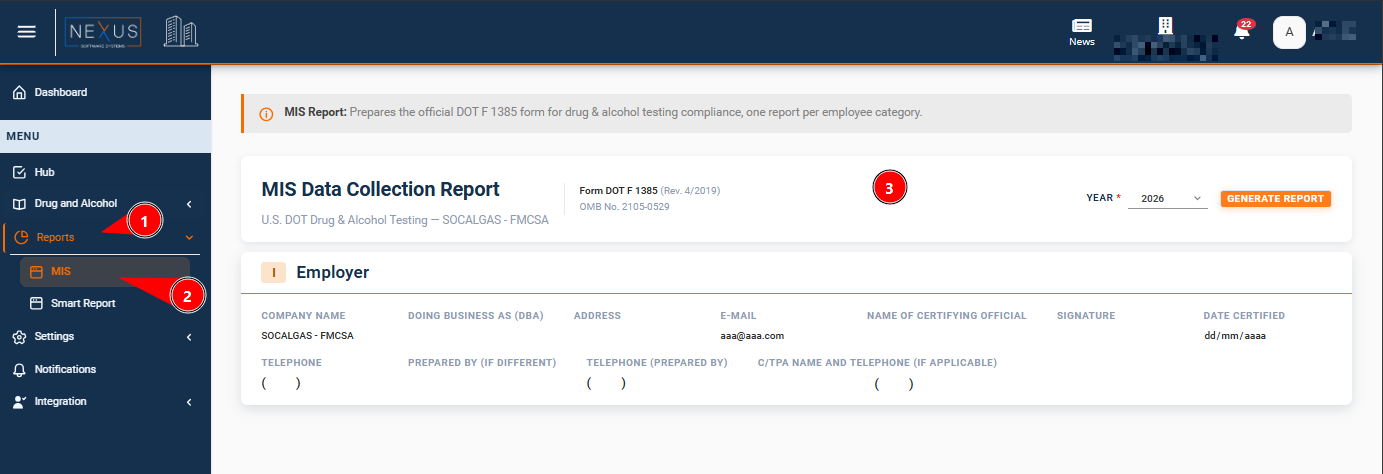
Generating a Report
Choose the calendar year in the Year list, then click Generate Report. The page will load the employer information, the DOT agency checked for your organization, and the employee and testing totals for that year.
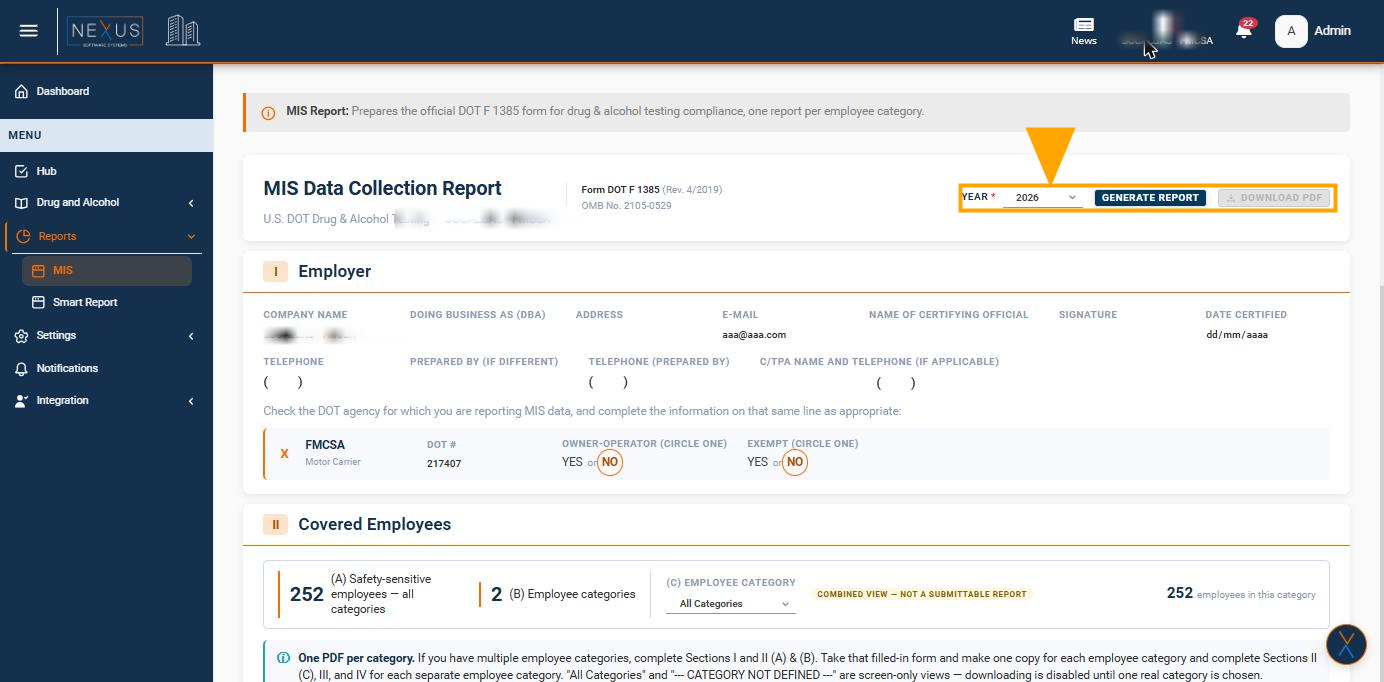
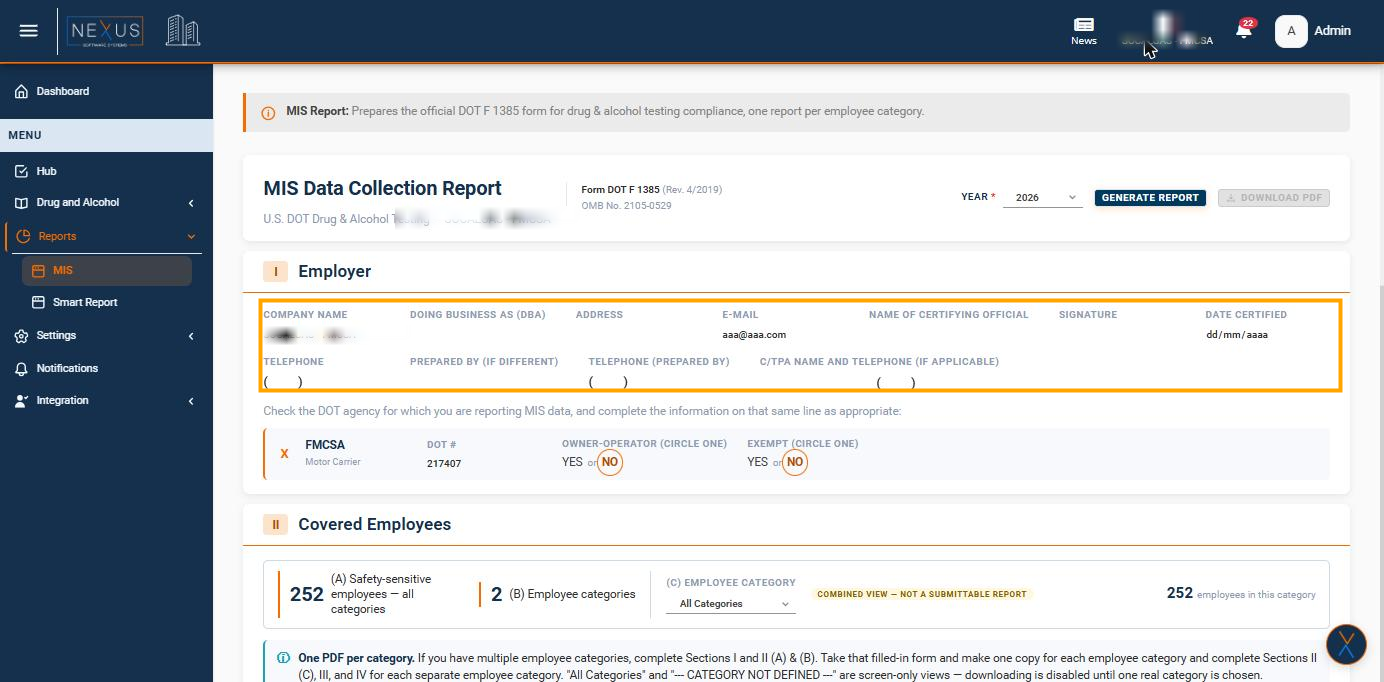
Employer Information (Section I)
This section shows your company details exactly as they are set up in your organization's profile: company name, address, e-mail, certifying official, signature, telephone numbers, and C/TPA name and telephone, if one is used. These fields are read-only on this page; to correct any of them, update the organization's profile.
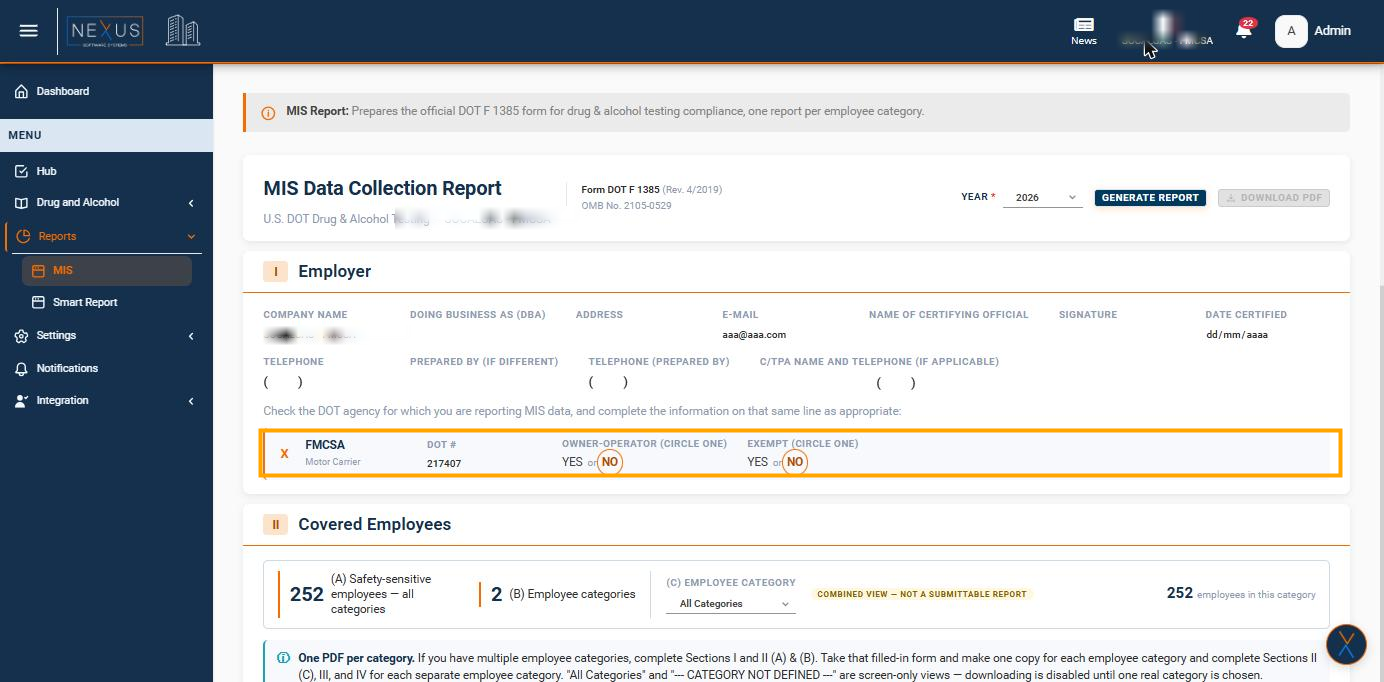
DOT Agency Information
Underneath the employer details, the report marks an X next to the DOT agency your organization reports to, together with that agency's specific fields (for example FMCSA's Owner-Operator and Exempt questions, or PHMSA's pipeline types). Only the agency assigned to your organization is shown; the other five possible agencies are simply left off the report, so this section always matches your organization's setup automatically.
Covered Employees (Section II)
This section shows how many safety-sensitive employees your organization has in total, and how many employee categories they are split into (for example Driver, or Operations/Maintenance). Use the Employee Category list to switch between categories - the count on the right updates immediately to show how many employees belong to the category you picked.
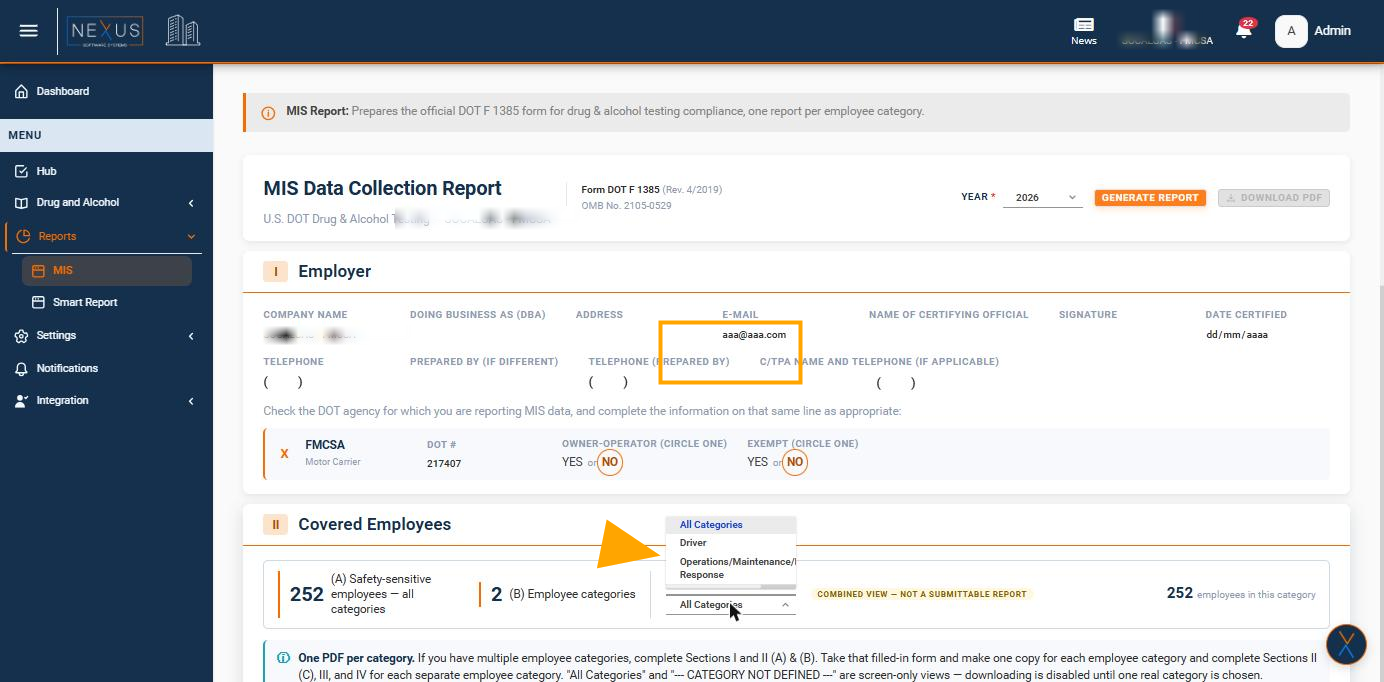
Once you pick a category, the count on the right updates immediately:
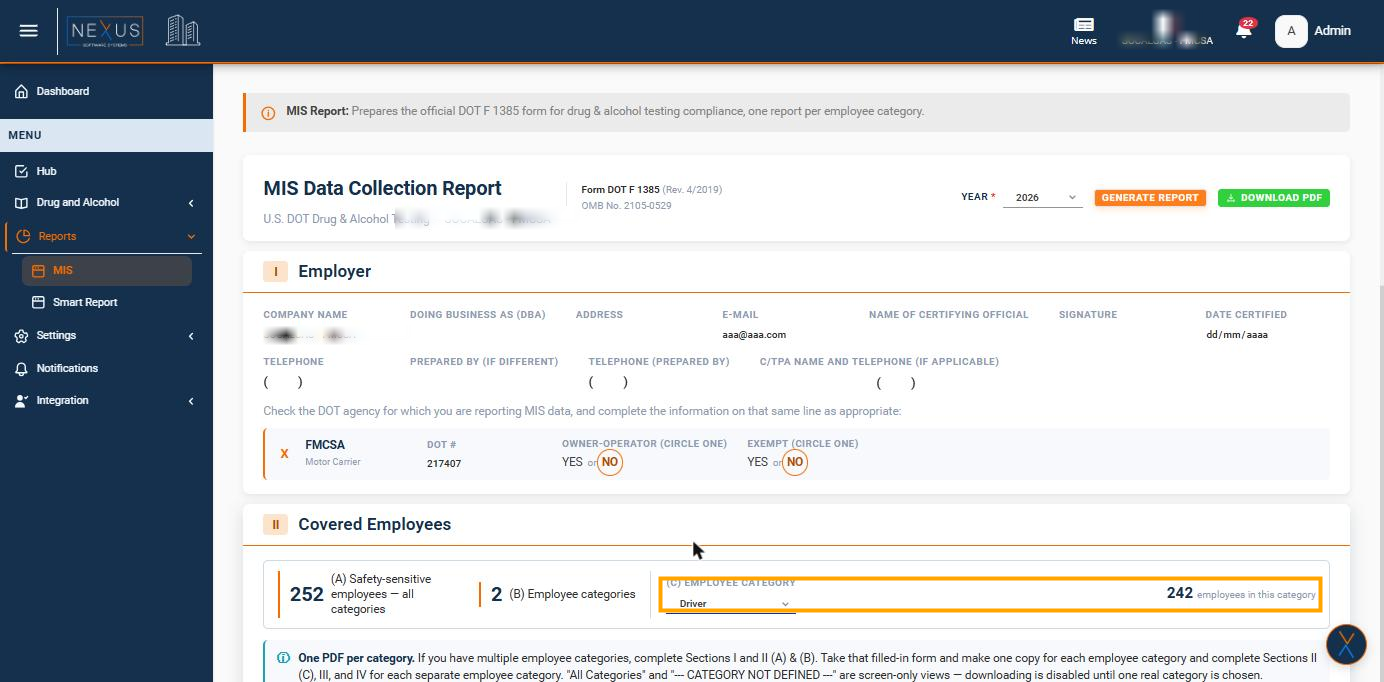
The Details of Persons Included panel (covered below) also lets you look up who is included in any count you see on this page.
Drug & Alcohol Testing Data (Sections III & IV)
These two tables show the actual test counts for the category you selected, broken down by reason for testing (Pre-Employment, Post-Accident, Reasonable Suspicion/Cause, Return-to-Duty, Follow-Up, and Random). Section III covers drug testing and Section IV covers alcohol testing.
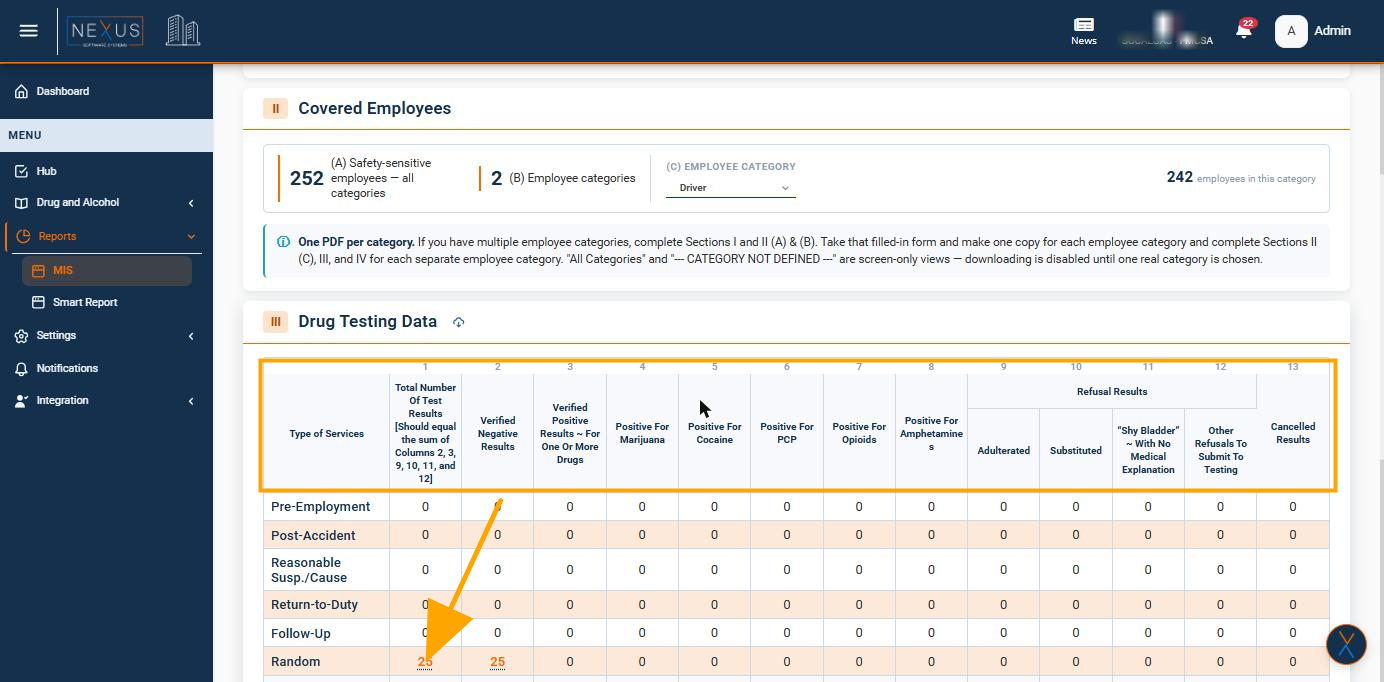
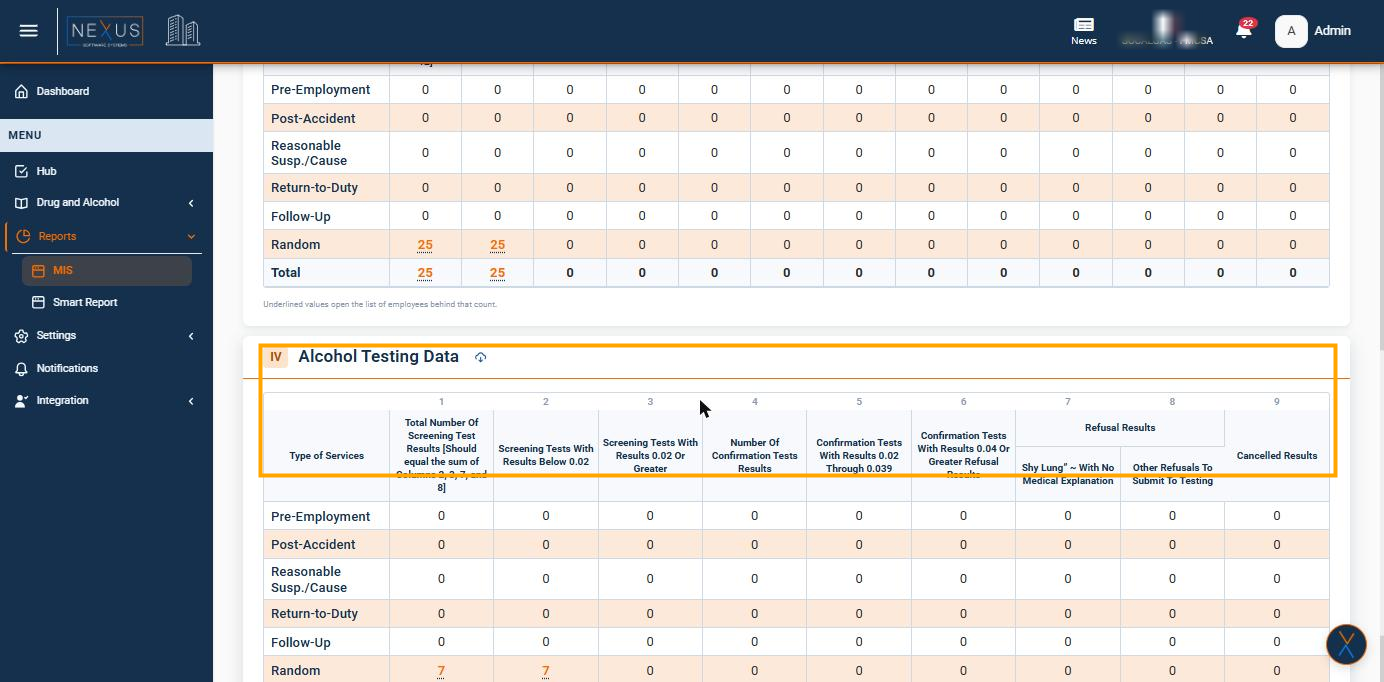
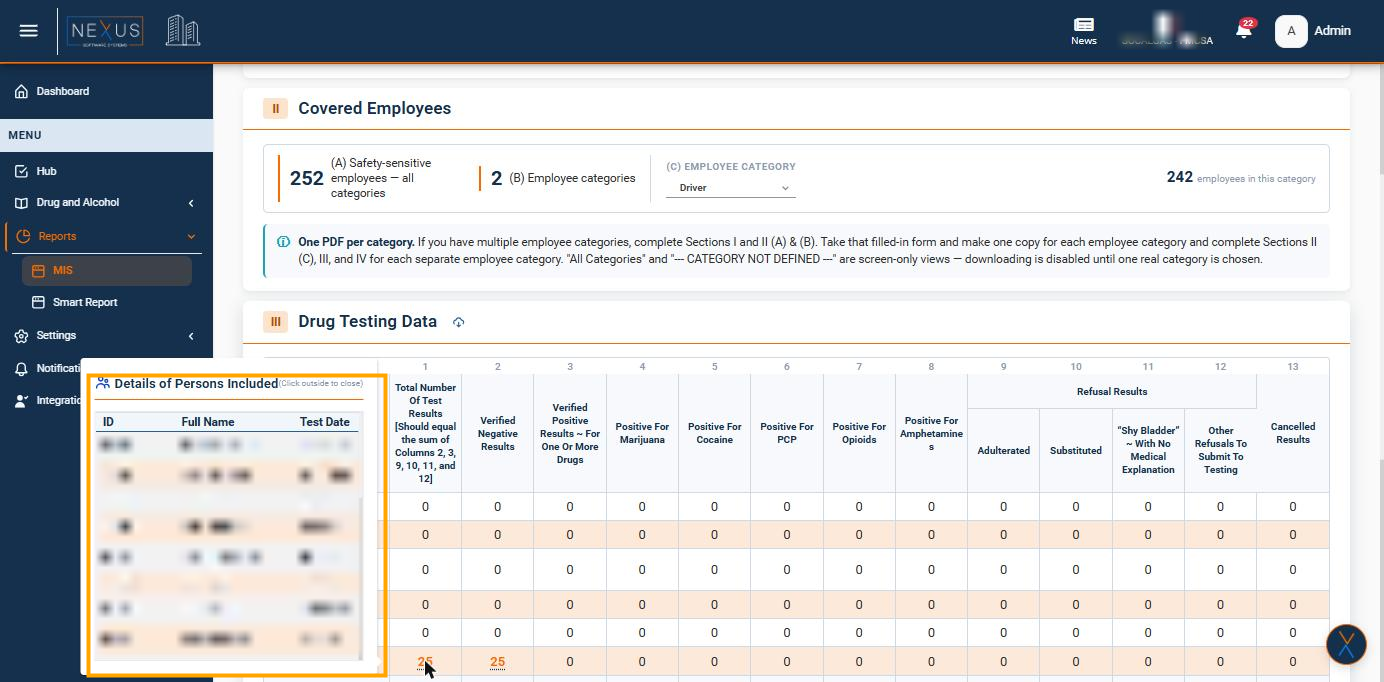
Any underlined number is clickable and opens the Details of Persons Included panel, showing exactly who is behind that count:
Downloading the PDF Report
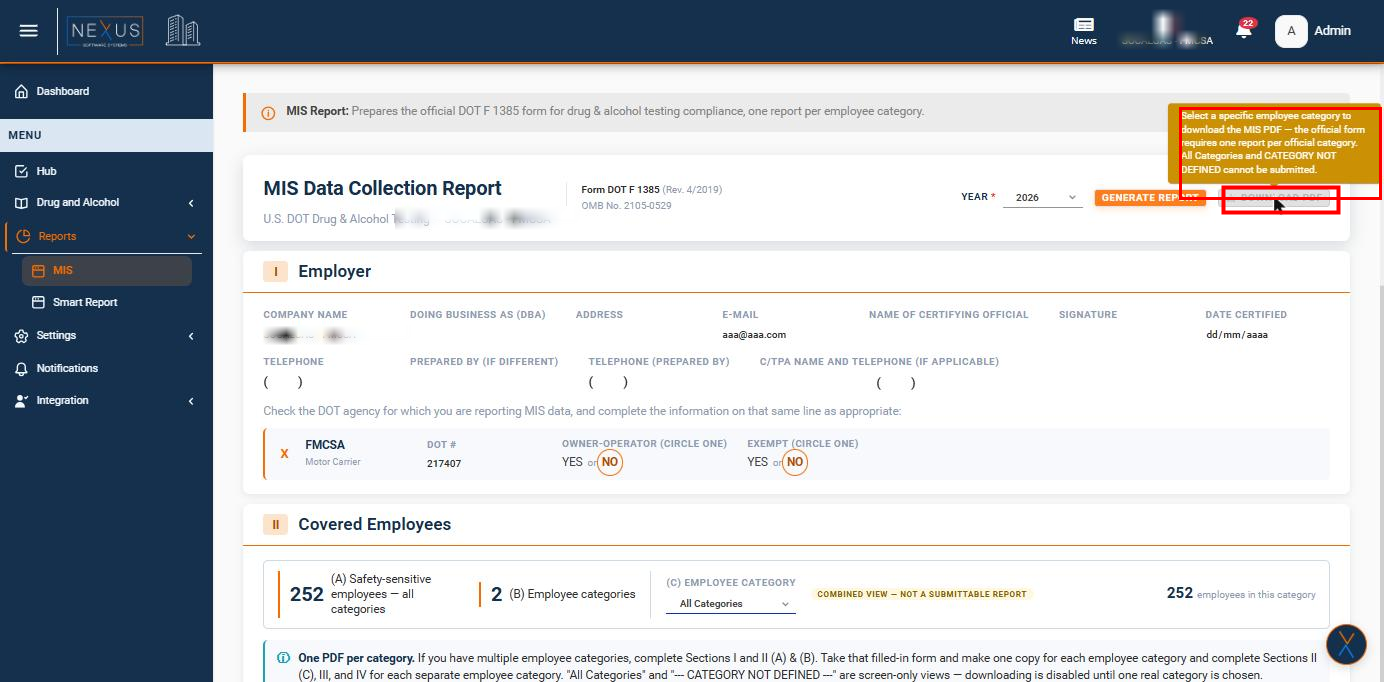
The official DOT form must be submitted one category at a time, so the Download PDF button is only active once you have chosen a real employee category. While All Categories or CATEGORY NOT DEFINED is selected, the button stays disabled and explains why if you hover over it:
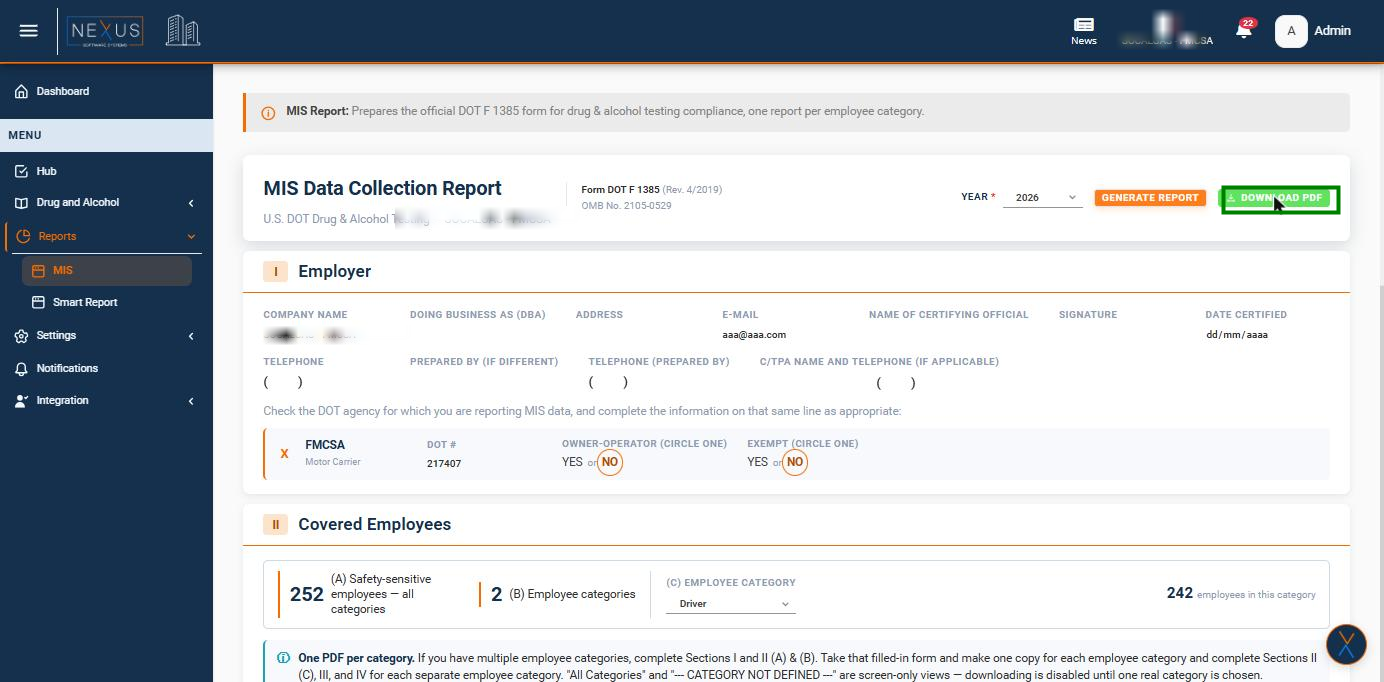
Once you pick a real category, the button turns on:
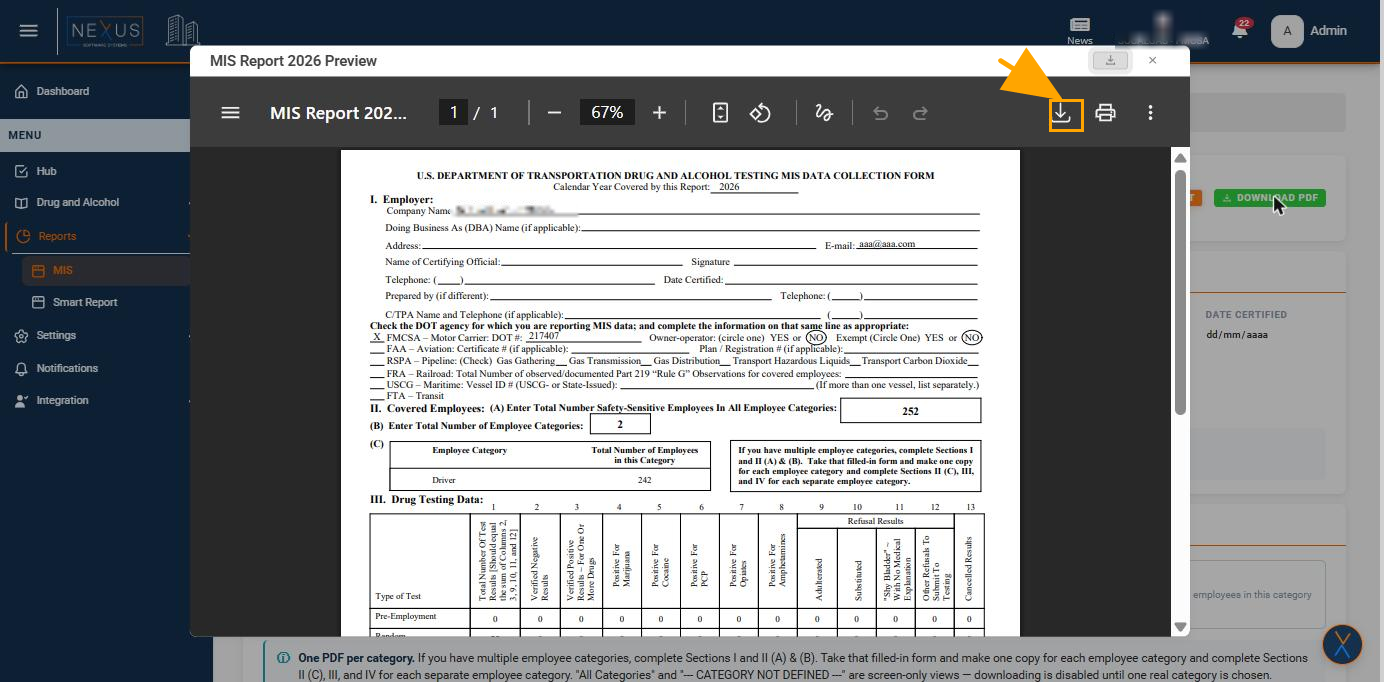
Clicking Download PDF opens a preview of the finished form. Use the download icon inside this preview window (next to Print) to save the file - this is the recommended way to download, rather than any download control your browser may show on its own PDF viewer.
Workflow Scenarios
Single employee category: Generate the report, confirm Section I and the DOT agency information, then download the PDF directly - the employee category is chosen automatically.
Multiple employee categories: Generate the report once per year, then for each real category: select it in the Employee Category list, review Sections II, III and IV for that category, and download its PDF. Repeat for every category before considering the year complete.
Validations and Restrictions
- A PDF can only be downloaded for one specific employee category at a time - never for All Categories or CATEGORY NOT DEFINED.
- Section I (Employer) and the DOT Agency fields come from your organization's profile and cannot be edited from this page.
- Only the DOT agency assigned to your organization is shown on the form.
- If CATEGORY NOT DEFINED appears, it means some employees have not been assigned to a category yet; contact your administrator to have this corrected before submitting the report.
Additional Notes / Support
The MIS report is intended to match the official DOT F 1385 form exactly, so the numbers shown here should always match what you submit. If something looks incorrect, check the employee category assignments and testing records first; if the issue persists, contact your administrator.